RobotsHelp

Category: AI at Work

Practical guides: how to use the newest AI tools at work, step by step, written for normal teams.

  • How to Use ChatGPT to Draft Reply Emails Faster

    Your inbox is full of messages that need a clear answer, not another hour of rewriting the same polite opener. This guide shows how to use ChatGPT to draft reply emails faster so you paste the thread, get a usable draft, and send after a short human check.

    Imagine it’s 4:40 pm, twelve replies still open, and in the next few minutes each one has a solid first draft in your voice instead of a blinking cursor.

    No password needed, your reset opens instantly.

    No password. Just your email, and you’re in.

    Short answer: paste the email you need to answer, tell ChatGPT the outcome you want and the tone to keep, then edit names, dates, and promises before you send. OpenAI’s own ChatGPT Work examples include finding emails that need attention and drafting replies in your voice while leaving them unsent for review (Get your email to inbox zero).

    Paste the email, ask for the reply you need

    Open a fresh chat so this thread does not mix with yesterday’s project notes. Paste the incoming message (or the last two turns if context matters). Add three short lines of your own:

    • Who you are in this thread (role or relationship)
    • What “done” looks like (approve, decline, propose a time, ask one clarifying question)
    • What you will not promise (budget, legal wording, or anything you have not checked)

    That paste-and-reply workflow is enough for most day-to-day mail. You are not asking ChatGPT to invent a company policy. You are asking it to turn a clear intent into sentences you can skim.

    If the thread is long, paste only the parts that change the answer. Many people find a short excerpt plus one sentence of context beats dumping the whole history.

    Brand new to ChatGPT? Start with our ChatGPT tutorial for beginners to set up your account and write your first work prompt, then come back here.

    A prompt that keeps your tone

    Tone is where a ChatGPT email reply draft often goes wrong. Too stiff, too chipper, or full of phrases you never use. Give ChatGPT a short sample of how you write, then lock the rules.

    You are helping me draft a reply email in my normal work voice.
    
    My role in this thread: [your role]
    Desired outcome: [approve / decline / propose times / ask one question / confirm next step]
    Tone: clear, warm, no hype. Short paragraphs. No exclamation marks unless I use them in the sample below.
    Hard rules:
    - Do not invent facts, dates, prices, or commitments I did not state.
    - If something is missing, put [NEED FROM ME] in brackets.
    - Keep the reply under 180 words unless I ask for more.
    - End with a simple next step the other person can answer in one line.
    
    Sample of how I write:
    [paste 3 to 5 sentences from a real email you sent]
    
    Incoming email:
    [paste message]
    
    Write the reply only. No preamble.

    Save that block as a note on your desktop. Faster email replies with ChatGPT usually come from reusing the same shape, not from rewriting the prompt every time.

    Want a ChatGPT reply to email template for a common case (meeting reschedule, “thanks, noted”, polite no)? Ask for two variants in the same chat: one short, one slightly warmer. Pick the closer one and edit once.

    Fix the draft in 30 seconds (what to check)

    Treat the draft as a first pass, not a send button. Spend half a minute on this checklist:

    1. Names, titles, and company spellings
    2. Dates, times, and time zones
    3. Any promise you did not mean to make
    4. Links or attachments you still need to add yourself
    5. Tone: would you say this out loud to that person?

    If the draft feels generic, tell ChatGPT one concrete detail to weave in (“mention we already shipped the sample on Tuesday”). One follow-up beat usually fixes it.

    If the reply reads a little too casual for the person on the other end, the prompts in make this email sound more professional tighten the tone while keeping your facts and your voice.

    When the reply is ready, copy it into your mail client. Do not paste secrets into ChatGPT that your company forbids in third-party tools. Redact account numbers and private personal data first.

    When not to auto-reply

    Some messages deserve a human first draft, or a human-only reply:

    • Conflict, complaints, or anything that could become a record in a dispute
    • Salary, health, or other sensitive personal topics
    • Legal, compliance, or security incidents
    • Anything where a wrong date or wrong yes would cost real money

    In those cases you can still ask ChatGPT to outline options or tighten your own wording after you write the core answer. Keep the judgment with you.

    If your workplace connects mail apps inside ChatGPT Work, the same review rule applies. Drafts stay unsent until you approve them, which matches how careful desk work should feel.

    Working in Gmail with a Google Workspace account? You can do the same thing without copy and paste. See how to use Gemini in Gmail.

    Turn it into a repeatable habit

    Speed compounds when the habit is boring and reliable:

    1. Keep one pinned prompt with your tone sample.
    2. Batch replies twice a day instead of answering every ping.
    3. For recurring mail (status updates, scheduling), keep a small set of starter outcomes you reuse.
    4. After you send, glance once: did the other person understand the next step? If not, tighten the closing line in your prompt.

    If you also leave meetings with messy notes, pair this with a structured summary habit so the follow-up email writes itself from clean decisions and owners. See how to use ChatGPT to summarize meeting notes.

    When the reply work sits next to other desk tasks, it helps to pick the right tool for the job rather than forcing one model to do everything. Our Grok Bot best model per task guide is a practical picker for that. For broader office workflows on the desktop, read best AI agent for desktop workflows in the office.

    If most of those replies are customers asking the same few questions, you can go one step further and automate customer support with AI agents that draft the answer and hand anything tricky back to you.

    You do not need a perfect system. You need a paste-and-reply workflow you trust, a prompt that sounds like you, and a thirty-second check before send.

    If the reply depends on a long report or deck, pull decisions and owners first with how to use Claude AI to summarize a long report and extract action items, then draft the email.

    If follow-ups keep slipping because every chase is written by hand, automate follow-up emails without code and let the sequence run while you stay on real replies.

    Ready for short, practical lessons that fit real desk work?

    No password needed, your reset opens instantly.

    No password. Just your email, and you’re in.

    Want the draft to leave your inbox without copy-paste every time? Pair this with Zapier free plan automation examples that keep the flow at one trigger and one action.

    If the job is a multi-touch outreach sequence rather than one reply, see ChatGPT for sales outreach sequences for a paste-ready cadence you can keep editing in ChatGPT.

    When the reply needs a reusable pattern for proposals, check-ins, or tough client news, start from ChatGPT for client communication templates and adapt the template to your voice.

    If the next step is a full bid rather than a short reply, open ChatGPT for proposal writing for freelancers and build the scope, timeline, and ask in one desk session.

    For support-desk wording beyond everyday inbox replies, see also ChatGPT prompts for customer support agent work.

    Once your replies are faster, the next step is letting the routine mail handle itself. Browse these email automation examples for eight workflows that sort, flag and draft mail for you, with drafts first so you stay in control.

    When the message you need to answer is a Google review rather than an email, follow how to use AI to respond to Google reviews to draft a short public reply you still check and post yourself.
  • How to Use ChatGPT to Summarize Meeting Notes

    Your meeting ended ten minutes ago, and the notes look like a pile of half-finished sentences. You still need a clear summary, who owns what, and a follow-up you can send without rewriting everything by hand. This guide shows how to use ChatGPT to summarize meeting notes so you leave with decisions, owners, and next steps you can trust.

    Imagine it’s 3 pm, three meetings still to go, and one minute from now your messy transcript turns into a one-page brief with named owners and due dates.

    When the follow-up is a reply sitting in your inbox, the same paste-and-check habit helps: how to use ChatGPT to draft reply emails faster.

    No password needed, your reset opens instantly.

    No password. Just your email, and you’re in.

    Short answer: paste or upload the notes (after you strip private details), ask for a structured summary with decisions and action items, then check names and dates before you share. OpenAI’s help docs confirm you can attach documents or audio and ask ChatGPT to summarize, including meeting recordings with decisions and next steps (Uploading files and audio to ChatGPT).

    What you need before you paste anything

    Treat the chat like a shared desk drawer. Do not paste passwords, personal health details, salary numbers, customer secrets, or anything your company forbids in third-party tools. Many teams allow high-level project notes in ChatGPT; others require a work or enterprise plan with admin controls. When you are unsure, redact names of sensitive clients and replace numbers with placeholders.

    Gather one clean input:

    • Your typed notes from the call
    • A transcript export from Teams, Zoom, or Google Meet
    • A short .docx or .txt file you upload instead of pasting a wall of text

    If the transcript is full of “um” and speaker labels, keep it. ChatGPT handles messy text better than you might expect, as long as you tell it what format you want back.

    How to use ChatGPT to summarize meeting notes (step by step)

    Open a new chat so this meeting does not mix with last week’s project. Then:

    1. Paste the notes, or attach the file with the paperclip / plus control.
    2. Add a short context line: who was in the room, what the meeting was for, and what “done” looks like for you.
    3. Ask for a fixed structure every time (see the prompt below).
    4. Skim the output. Fix wrong names, vague owners, and missing dates yourself.
    5. Ask one follow-up: “Draft a short email to the group with the decisions and action items.”

    Reuse the same structure weekly. Your brain learns the shape of a good summary, and you spend less time rewriting the prompt.

    A prompt that returns summary, decisions, and owners

    Copy this, then drop your notes underneath:

    You are helping me turn meeting notes into a desk-ready brief.
    
    Meeting purpose: [kickoff / weekly sync / decision call]
    Attendees: [names or roles]
    
    From the notes below, produce:
    1) 5-8 bullet summary (facts only, no fluff)
    2) Decisions made (bullet list; if none, say “None recorded”)
    3) Open questions still unresolved
    4) Action items table: Owner | Task | Due date | Depends on
    Rules:
    - Invent nothing. If a due date is missing, write “TBD” and flag it.
    - Prefer real names from the notes; if only a role appears, keep the role.
    - Keep the whole reply under 400 words.
    
    Notes:
    [paste notes or transcript here]

    That single prompt covers both a readable summary and how to use ChatGPT to turn meeting notes into action items without a second page of instructions.

    How to use ChatGPT to turn meeting notes into action items

    Action items fail when they are wishes, not tasks. After the first reply, send a second message:

    Rewrite the action items only.
    Each row must have one owner, one verb-led task, and a due date or TBD.
    Split any item that has two owners.
    Mark items that need a decision before work can start.

    Then move the table into your tracker or calendar. ChatGPT drafts; you assign. If you are comparing tools for multi-step desk work later, our guide on the best AI agent for desktop workflows in office shows when chat-only help stops being enough.

    Cleaning messy notes and long transcripts

    Raw transcripts are noisy. Ask ChatGPT to ignore filler words, merge duplicate points, and group by topic before it summarizes. A useful follow-up:

    Clean the transcript first: remove filler, merge repeats, keep speaker labels when they matter for ownership. Then run the same four-part brief.

    For a one-hour call, many people find it helps to summarize in chunks (first half, second half) and then ask for a combined brief. That keeps important decisions from getting buried in chat limits or long context.

    No transcript at all, only a recording? This guide on how to transcribe audio with AI walks through free and paid ways to turn the audio into text first.

    If the notes arrive as a long PDF, like a board pack or exported minutes, this guide to analyzing long PDF files with Claude shows how to pull out decisions with page numbers.

    For a training manual or handbook you will open again, this guide to turning a PDF into notes with Claude builds an outline and glossary you can reuse.

    Draft the follow-up email from the same notes

    Once the brief looks right, stay in the same thread:

    Draft a short follow-up email (under 180 words) to attendees.
    Tone: clear and friendly, not corporate.
    Include: 3 key outcomes, the action items with owners and dates, and one line asking people to reply if something is wrong.
    Subject line options: give me three.

    Edit the draft in your own voice before you send. The goal is a pasteable start, not a finished identity swap.

    Common mistakes that waste the summary

    • Vague owners. “Team to follow up” is not an action item. Name one person.
    • No next step. A summary without decisions or tasks is a diary entry.
    • Pasting secrets. Strip credentials and private data before the chat.
    • Blind trust. Models can invent a date or merge two people. Spot-check against your memory or the recording.
    • A new prompt every week. Save your template so quality stays steady.

    If you later pick models inside a multi-model workspace, how to pick the best model per task in Grok Bot is a useful sibling read. For voiceover work after the meeting (training clips, explainers), see Suno Speech for training voiceovers.

    If most of your meetings already live in Google Meet, you may not need to paste notes into ChatGPT at all. Gemini can write them during the call with Take notes for me, then help you summarize that doc and pull action items. See how to use Gemini for meeting notes if you want that Google path instead of a copy-paste workflow.

    A weekly workflow you can reuse

    1. End the meeting with one person owning the notes file.
    2. Within an hour, paste or upload into ChatGPT with the template above.
    3. Confirm owners and dates in two minutes of human review.
    4. Send the follow-up email draft, then copy action items into your tracker.
    5. Save the prompt in a note titled “Meeting brief” so next Monday is copy-paste.

    That rhythm is how to use ChatGPT to summarize meeting notes without turning every call into an afternoon of rewriting.

    Quick checklist before you hit send

    • Private data removed from the paste or upload
    • Summary matches what you heard (no invented decisions)
    • Every action item has one owner and a date or TBD
    • Follow-up email is short enough people will read it
    • Tracker updated so the chat is not the only record

    When the pile is a long report or PDF instead of meeting notes, the same summary-plus-owners habit works in Claude. See how to use Claude AI to summarize a long report and extract action items.

    When those owners and dates need to leave the chat and land as a short recurring update, see Gemini for automated status updates.

    If someone who missed the meeting needs a proper write-up rather than a summary, here is how to turn meeting notes into a report people can act on.

    Good notes start before the meeting does. Next time, use AI to create a meeting agenda with a clear goal, time boxes and the decisions you need, so the summary almost writes itself.

    If the decisions happened in a Slack thread instead of a meeting, use this ChatGPT prompt for action items from a Slack thread to pull out owners, deadlines, and the message that proves each one.

    If you would rather capture decisions live instead of cleaning notes later, start with our comparison of the best AI note taker for meetings.

    Want guided practice on desk workflows like this? Launchpad walks you through practical AI steps with No password. Just your email, and you’re in.

    No password needed, your reset opens instantly.

    No password. Just your email, and you’re in.

  • Best AI Agent for Desktop Workflows in the Office (Practical 2026 Guide)

    Your inbox, spreadsheet, and browser tabs all need attention before lunch. You do not need another chatbot that only answers questions. You need the best AI agent for desktop workflows in office work: something that can pull from your files, click through apps when needed, and hand you a finished draft you can check.

    Imagine it’s 10:15. You ask one agent to turn yesterday’s meeting notes into a one-page brief, update the tracker row, and draft the follow-up email. By the time you refill your coffee, the three pieces are ready to review.

    Want that kind of desk help without the hype? Join Launchpad free. Step-by-step lessons that show you how to use AI for real work.

    No password needed – your reset opens instantly.

    No password. Just your email, and you’re in.

    Short answer: for most office desks in 2026, start with the ChatGPT desktop app and ChatGPT Work when you need multi-step work across files and connected apps. Treat “agent” as a job description, not a brand. The best fit depends on whether your task lives in chat, in local apps, or in a tool that already routes models for you.

    What “best AI agent for desktop workflows in office” really means

    People search this phrase when chat-only AI stops being enough. An office desktop workflow is a chain: open a file, read a thread, update a sheet, write a reply, maybe move a folder. A useful agent does more than answer. It stays with the job, asks when stuck, and returns something you can ship after a quick check.

    That is different from a single clever prompt. OpenAI describes ChatGPT Work as an agent that can gather information across apps and workflows, create finished materials like sheets, slides, and docs, and stay with complex projects by breaking them into smaller steps. On desktop, Computer Use can operate graphical apps when a plugin or API is not enough, per OpenAI’s Computer Use guide.

    Older “ChatGPT agent” mode is being steered toward Work for longer tasks. If you still see agent wording in help docs, read the date and prefer the current Work and desktop paths.

    How to choose: three practical options for desk work

    You do not need every tool. Pick by where the work already lives.

    1) ChatGPT Work + desktop app (best default for many offices)

    Use this when your day sits in email, Drive or SharePoint, Slack or Teams, calendars, and local files. OpenAI’s product page says the desktop app can use local files and apps, includes a built-in browser for web-based work, and offers Computer Use for clicking and typing across apps when you approve it. Scheduled Tasks can repeat checks or updates so you are not babysitting every step.

    Good first tasks:

    • Turn a messy meeting transcript into action items and owners.
    • Build a one-page brief from three PDFs already on your machine.
    • Draft a reply email from a thread summary, then you send it.

    If you only need a clean summary and action list from notes you already typed, start with how to use ChatGPT to summarize meeting notes.

    Stay in control. Approve app access narrowly. Prefer a plugin or connector when one exists. Save Computer Use for UI-only steps. On Windows, expect the agent to take the foreground while it works, so plan a short block or use a secondary machine if you need to keep typing elsewhere.

    2) Grok Bot when you want model routing without picking models

    If your friction is “which model should I use for this task?”, a routed bot can help. RobotsHelp already covers that angle in detail: how to use Grok Bot to get the best AI model for every work task. That page is about routing and safe try-outs, not about clicking through Excel for you. Pair it with ChatGPT Work when the hard part is multi-app execution, not model choice.

    3) Claude or Gemini when your stack already lives there

    If your team already works in Claude Projects or Gemini inside Google Workspace, do not rip that out for a brand name. Use the agent or side-panel features you already have for long documents, Sheets, and Slides. The “best” agent is the one your IT already allows and that you will open every morning. Soft rule of thumb: stay inside the suite that holds your files, then add a desktop agent only for gaps.

    A simple decision table for busy professionals

    Your situation Start here Why
    Files and apps on your own PC or Mac ChatGPT desktop + Work Local files, browser, optional Computer Use
    Heavy Google Workspace day Gemini side panel first Docs, Sheets, Slides already open
    Long PDF or report in Claude Claude Projects / document chat Strong for long reading and rewrite
    Unsure which model fits the task Grok Bot routing Less time spent model-shopping
    Training video needs a voiceover Suno Speech workflow See our Suno Speech training voiceover guide

    A 20-minute test you can run this week

    Do not buy a stack after reading a blog post. Run one real task.

    1. Pick a boring job you already know: weekly status email, meeting-notes cleanup, or a short competitive one-pager.
    2. Collect the source files in one folder. Remove anything confidential you should not feed an AI tool under your company policy.
    3. In ChatGPT desktop (or your allowed tool), describe the outcome, not the vibe. Example: “Read these three notes. Make a one-page brief with decisions, open questions, and owners. Draft a five-sentence email I can send to the team.”
    4. Watch the first run. Correct the format once. Ask it to reuse that format next time.
    5. If a step needs a desktop UI with no connector, try Computer Use on a low-risk app first, with you present.

    Many people find the second run is where time savings show up, because the format is already settled.

    Safety habits that keep you employed

    Agents that can click and read screens are powerful and risky. OpenAI’s Computer Use guidance is clear: keep tasks narrow, review permission prompts, avoid secrets unless you are present, and stop the run if the wrong window is in focus. For web and connected apps, assume anything visible can be treated as context.

    • Never paste passwords into the chat. Use takeover or manual login when asked.
    • Enable only the apps needed for this task.
    • Skip vague prompts like “handle my email.” Name the outcome and the stop point.
    • Check company policy before connecting Drive, mail, or CRM.

    What “best” looks like after one month

    The winner is not the flashiest demo. It is the agent you trust for three recurring workflows: meeting follow-up, document cleanup, and a weekly status pack. Track minutes saved on those three only. If a tool cannot finish a draft you would send with light edits, it is not your office agent yet.

    If you want guided practice instead of another tab of theory, Launchpad walks through practical desk tasks with ChatGPT, Claude, Gemini, and related tools. No password. Just your email, and you’re in.

    No password needed – your reset opens instantly.

    No password. Just your email, and you’re in.

    Email replies are another desk task the same agents can speed up. If your inbox is the bottleneck, see how to use ChatGPT to draft reply emails faster.

    For chase notes that should go out on a schedule without a custom stack, automate follow-up emails without code and keep the pipeline warm from your desk.

    If a big part of your day is answering customer questions, the same agent idea works for a support inbox. Here is how to automate customer support with AI agents without code.

    Want an agent that runs in the cloud on its own, sorting email or screening leads while your laptop is closed? Here is how to pick a no code AI agent builder that fits the apps you already use.

    Torn between a self-hosted assistant you message from chat and a coding agent that works in your files? Our OpenClaw vs Claude Code comparison puts cost, setup and safety side by side.

    If the work is desk deliverables rather than code, spreadsheets, reports, decks, compare OpenClaw vs Claude Cowork instead.

    Picked OpenClaw and working on a Windows PC? Here is how to install OpenClaw on Windows, step by step, from the Windows Hub app to PowerShell and WSL2.

    Sources

    For lighter no-code glue between the tools you already use, skim Zapier free plan automation examples aimed at desk work under the Free plan limits.

  • How to use Suno Speech to make a voiceover for your training video

    How to use Suno Speech to make a voiceover for your training video

    You finally finished the slides for the new onboarding module. Now someone says it needs a voiceover, and the only options are your own voice at your kitchen table or a freelancer who can fit you in next week. Suno just opened a beta that turns your script into spoken audio, with background music if you want it, in one go.

    Imagine pasting your script at 10 and playing the finished narration to your manager before lunch.

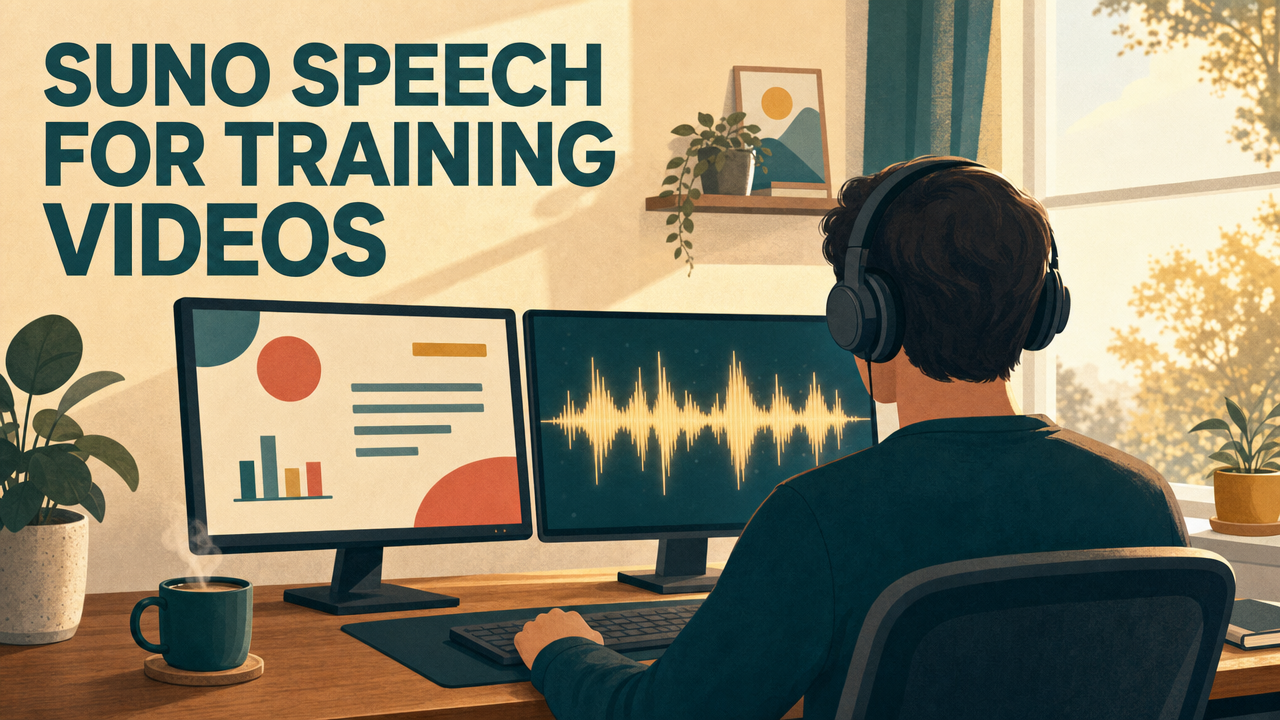
    Person seen from behind wearing headphones at a desk, a training slide on one monitor and an audio waveform on the other, titled Suno Speech for training videos

    robotshelp Launchpad (free): step-by-step lessons to let AI do the boring part of your work.

    What changed

    On 1 October 2026 Suno, the company best known for its AI song generator, opened Speech as a public beta for everyone. It is built into the normal Suno app on the web, iPhone and Android. Here is what that means at work:

    • Voice and music come out as one track. Suno says Speech generates the voice and the background music together. For you, that means no separate step to find a music bed and line it up under the narration.
    • The music is optional. There is a toggle to switch the background music off, so you can get clean speech for a training clip or an internal update.
    • Two ways in. Simple mode takes a short description of what you want. Advanced mode takes your own script, word for word, and lets you set the voice gender, the speaking style and how much each take varies. For work, Advanced is the one you want.
    • About eight minutes per track. That covers most training clips, promo videos and short updates. A longer course needs to be split into parts.

    How your team can use it

    HR and training: onboarding walk-throughs

    Write the “Your first day” script once, two or three minutes long, and generate a calm narrated version with soft music under it. New starters can play it before they arrive, and you stop repeating the same welcome talk every month.

    Marketing: voiceover for a product demo

    You have a 60-second screen recording of the new feature. Paste the script, ask for a friendly, clear voice with light upbeat music, and drop the audio under the video in whatever editor you already use.

    Sales: a short audio intro for a proposal

    A 45-second spoken summary of what the client gets, sent next to the PDF. Keep it plain: who you are, the problem you solve for them, the next step. Music off, so it sounds like a message, not an ad.

    Managers: a weekly team update people actually hear

    Turn your written Monday update into a three-minute audio version your team can play on the commute. Same text you already wrote, a second way to take it in.

    Support and operations: spoken how-to steps

    “How to reset your password” or “How to log a return” as a one-minute narrated clip you can link in a help article. Many people follow along more easily when someone talks them through it.

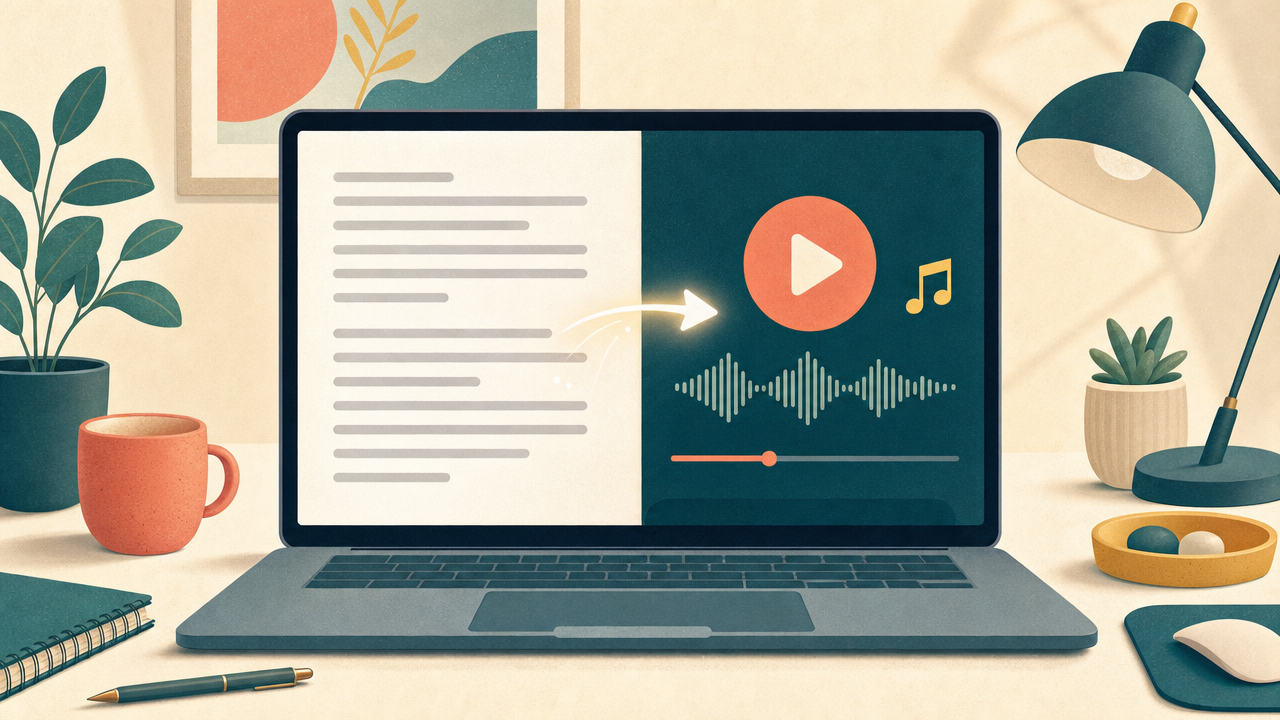
    Laptop screen split in two, a typed script on the left turning into a playable audio track with a music note on the right

    Before vs now

    • Last month: book a voice actor or record yourself, redo the take when you stumble, then search a stock site for music and line it up under the voice.
      Now: paste the script, describe the voice and the mood, listen, and generate again if a line sounds off.
    • Last month: the training video waited a week for audio.
      Now: you can have a first version the same morning and spend the saved time on the script itself.
    • Last month: an internal update was text only, because recording felt like too much work.
      Now: the text you already wrote becomes an audio version in a few minutes.

    Try it yourself: a 90-second training voiceover in 10 minutes

    1. Open suno.com or the Suno app and sign in. Suno says the beta is open to everyone, so a free account should be enough to test it.
    2. Go to the Create tab and choose Speech.
    3. Switch to Advanced mode so you can paste your own script.
    4. Paste a short script. About 200 words gives you roughly a minute and a half of audio. Read it out loud once yourself first and fix anything that sounds stiff.
    5. In the description, say who is speaking and how. You can copy this one and change the details:

    A warm, clear, friendly voice, like an experienced colleague explaining something to a new team member. Calm pace, short pauses between steps. Very soft piano in the background, low enough that every word is easy to hear.

    1. Generate it and listen with headphones. Check three things: every name and product word is pronounced right, the pace is not rushed, and the music never fights the voice.
    2. If one word sounds wrong, spell it the way it sounds in the script (for example “Sass” for SaaS) and generate again. If the music is distracting, flip the music toggle off.
    3. Play it to one colleague before it goes anywhere. Ask one question: “Did anything sound strange?”

    Here is a starter script you can use for the test:

    Welcome to the team. In the next minute I will show you the three things to do on your first morning. First, log in to your laptop with the password from your welcome email. Second, open the team calendar and accept your first-week meetings. Third, say hello in the team chat, even if it is just one line. That is it. Everything else, we will show you together.

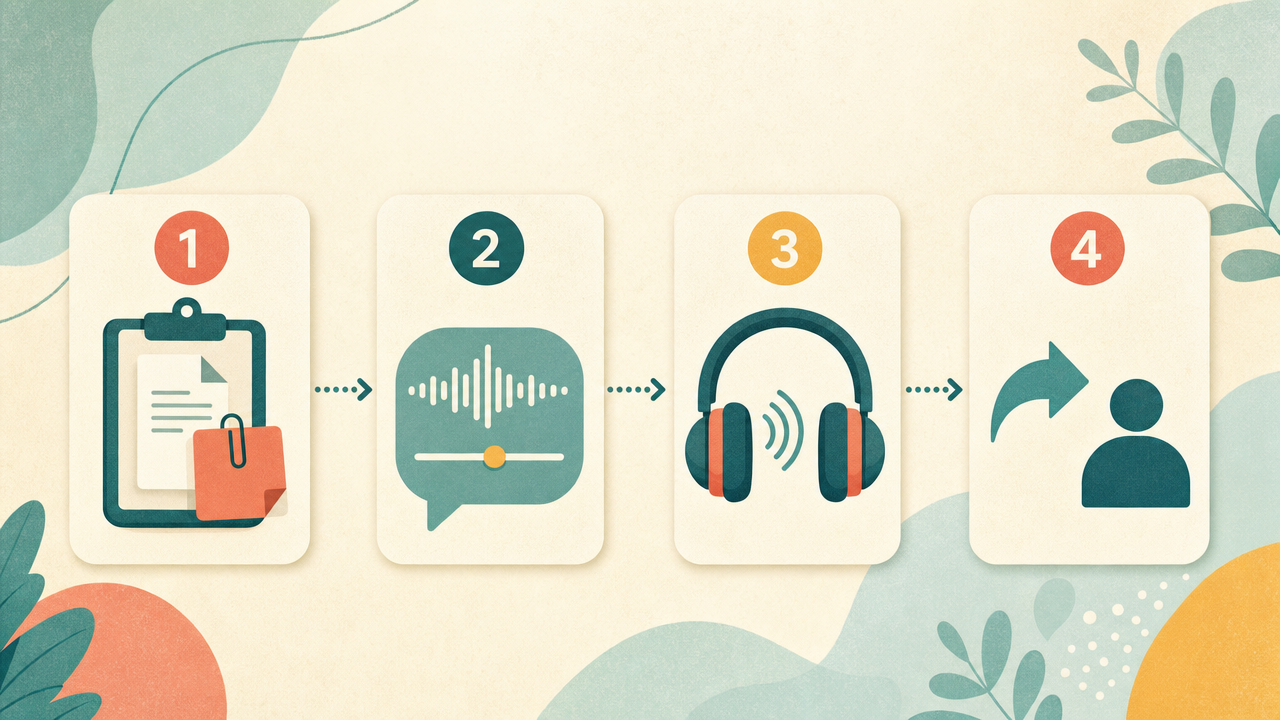
    Four numbered step cards: paste the script, describe the voice, listen with headphones, share with one colleague

    Honest limits

    • It is a beta, and Suno says so. Their own words: accents can “wander off to Australia and back” and dramatic pauses can be very dramatic. Always listen to the whole track before you use it.
    • Around eight minutes is the ceiling. Longer training needs to be split into chapters.
    • No separate price for Speech yet. Suno’s pricing page does not list Speech as its own item. On the current plans the free tier gives 50 credits a day, while Pro and Premier come with monthly credits and a set number of downloads.
    • Using it for work needs a paid plan. The free plan has no commercial rights. Suno’s terms say you can only use output commercially if you downloaded it through a permitted download on your plan. For anything a customer will hear, use Pro or Premier and download it properly.
    • Check with your legal or brand team for public material. The Verge points out that Suno’s music generator has attracted several lawsuits. For an internal clip that risk is smaller, but it still needs a paid plan. For a paid ad, ask first.
    • It is not your voice. Speech creates a synthetic voice. If your company has rules about labelling AI audio, follow them.

    Who can use it now

    Checked on 4 October 2026: Speech is open as a public beta to everyone with a Suno account, on the web and in the iOS and Android apps. There is no waitlist, and since Suno opened it to everyone, a free account should be enough to try it. For any work use, internal clips included, you need a paid plan: Pro (listed from $8 a month when billed yearly) or Premier (from $24 a month billed yearly), both with commercial use rights. Prices can change, so check the pricing page before you buy.

    Once the voiceover is done, you may still need help turning notes, files, and app clicks into the rest of the training pack. That larger desk flow is covered in best AI agent for desktop workflows in the office.

    When the training is done and you are back in meetings, how to use ChatGPT to summarize meeting notes turns rough notes into owners and due dates.

    Sources

    robotshelp Launchpad (free): step-by-step lessons to let AI do the boring part of your work.