You finally finished the slides for the new onboarding module. Now someone says it needs a voiceover, and the only options are your own voice at your kitchen table or a freelancer who can fit you in next week. Suno just opened a beta that turns your script into spoken audio, with background music if you want it, in one go.
Imagine pasting your script at 10 and playing the finished narration to your manager before lunch.
robotshelp Launchpad (free): step-by-step lessons to let AI do the boring part of your work.
What changed
On 1 October 2026 Suno, the company best known for its AI song generator, opened Speech as a public beta for everyone. It is built into the normal Suno app on the web, iPhone and Android. Here is what that means at work:
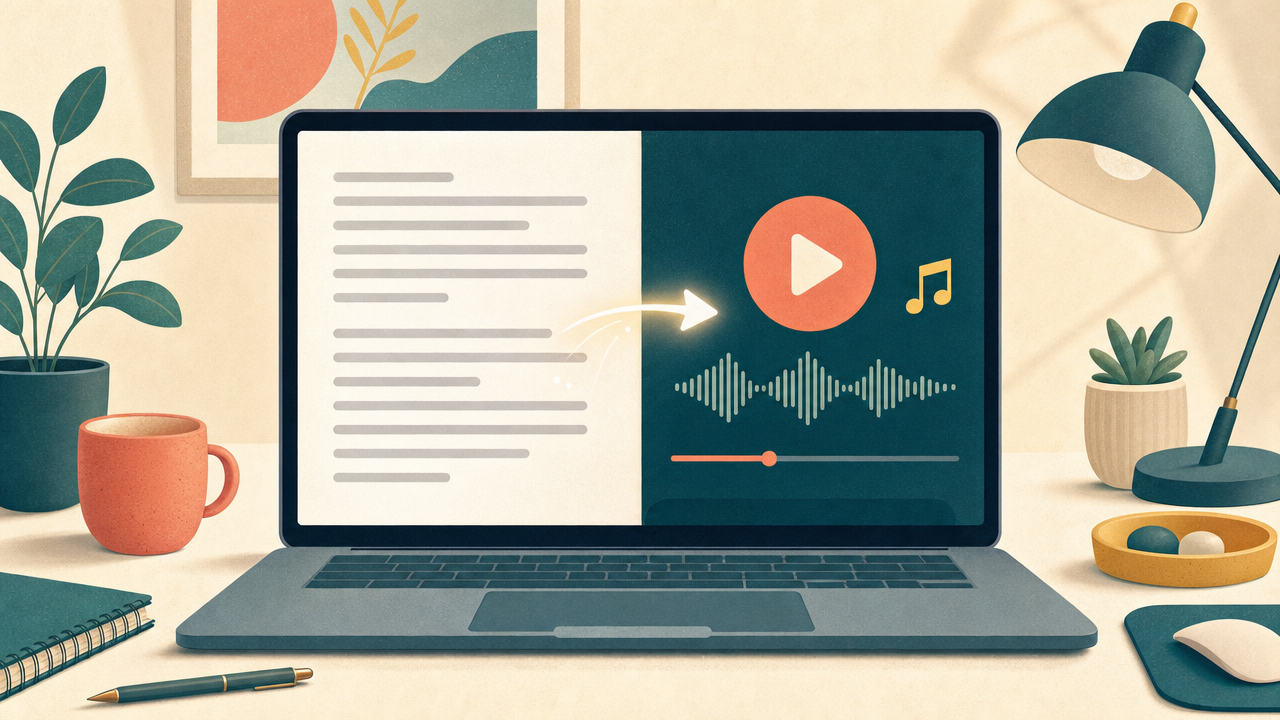
- Voice and music come out as one track. Suno says Speech generates the voice and the background music together. For you, that means no separate step to find a music bed and line it up under the narration.
- The music is optional. There is a toggle to switch the background music off, so you can get clean speech for a training clip or an internal update.
- Two ways in. Simple mode takes a short description of what you want. Advanced mode takes your own script, word for word, and lets you set the voice gender, the speaking style and how much each take varies. For work, Advanced is the one you want.
- About eight minutes per track. That covers most training clips, promo videos and short updates. A longer course needs to be split into parts.
How your team can use it
HR and training: onboarding walk-throughs
Write the “Your first day” script once, two or three minutes long, and generate a calm narrated version with soft music under it. New starters can play it before they arrive, and you stop repeating the same welcome talk every month.
Marketing: voiceover for a product demo
You have a 60-second screen recording of the new feature. Paste the script, ask for a friendly, clear voice with light upbeat music, and drop the audio under the video in whatever editor you already use.
Sales: a short audio intro for a proposal
A 45-second spoken summary of what the client gets, sent next to the PDF. Keep it plain: who you are, the problem you solve for them, the next step. Music off, so it sounds like a message, not an ad.
Managers: a weekly team update people actually hear
Turn your written Monday update into a three-minute audio version your team can play on the commute. Same text you already wrote, a second way to take it in.
Support and operations: spoken how-to steps
“How to reset your password” or “How to log a return” as a one-minute narrated clip you can link in a help article. Many people follow along more easily when someone talks them through it.
Before vs now
- Last month: book a voice actor or record yourself, redo the take when you stumble, then search a stock site for music and line it up under the voice.
Now: paste the script, describe the voice and the mood, listen, and generate again if a line sounds off. - Last month: the training video waited a week for audio.
Now: you can have a first version the same morning and spend the saved time on the script itself. - Last month: an internal update was text only, because recording felt like too much work.
Now: the text you already wrote becomes an audio version in a few minutes.
Try it yourself: a 90-second training voiceover in 10 minutes
- Open suno.com or the Suno app and sign in. Suno says the beta is open to everyone, so a free account should be enough to test it.
- Go to the Create tab and choose Speech.
- Switch to Advanced mode so you can paste your own script.
- Paste a short script. About 200 words gives you roughly a minute and a half of audio. Read it out loud once yourself first and fix anything that sounds stiff.
- In the description, say who is speaking and how. You can copy this one and change the details:
A warm, clear, friendly voice, like an experienced colleague explaining something to a new team member. Calm pace, short pauses between steps. Very soft piano in the background, low enough that every word is easy to hear.
- Generate it and listen with headphones. Check three things: every name and product word is pronounced right, the pace is not rushed, and the music never fights the voice.
- If one word sounds wrong, spell it the way it sounds in the script (for example “Sass” for SaaS) and generate again. If the music is distracting, flip the music toggle off.
- Play it to one colleague before it goes anywhere. Ask one question: “Did anything sound strange?”
Here is a starter script you can use for the test:
Welcome to the team. In the next minute I will show you the three things to do on your first morning. First, log in to your laptop with the password from your welcome email. Second, open the team calendar and accept your first-week meetings. Third, say hello in the team chat, even if it is just one line. That is it. Everything else, we will show you together.
Honest limits
- It is a beta, and Suno says so. Their own words: accents can “wander off to Australia and back” and dramatic pauses can be very dramatic. Always listen to the whole track before you use it.
- Around eight minutes is the ceiling. Longer training needs to be split into chapters.
- No separate price for Speech yet. Suno’s pricing page does not list Speech as its own item. On the current plans the free tier gives 50 credits a day, while Pro and Premier come with monthly credits and a set number of downloads.
- Using it for work needs a paid plan. The free plan has no commercial rights. Suno’s terms say you can only use output commercially if you downloaded it through a permitted download on your plan. For anything a customer will hear, use Pro or Premier and download it properly.
- Check with your legal or brand team for public material. The Verge points out that Suno’s music generator has attracted several lawsuits. For an internal clip that risk is smaller, but it still needs a paid plan. For a paid ad, ask first.
- It is not your voice. Speech creates a synthetic voice. If your company has rules about labelling AI audio, follow them.
Who can use it now
Checked on 4 October 2026: Speech is open as a public beta to everyone with a Suno account, on the web and in the iOS and Android apps. There is no waitlist, and since Suno opened it to everyone, a free account should be enough to try it. For any work use, internal clips included, you need a paid plan: Pro (listed from $8 a month when billed yearly) or Premier (from $24 a month billed yearly), both with commercial use rights. Prices can change, so check the pricing page before you buy.
Once the voiceover is done, you may still need help turning notes, files, and app clicks into the rest of the training pack. That larger desk flow is covered in best AI agent for desktop workflows in the office.
When the training is done and you are back in meetings, how to use ChatGPT to summarize meeting notes turns rough notes into owners and due dates.
Sources
- Suno: Introducing Speech (beta), 1 October 2026
- Suno release notes: Speech (beta) on web, iOS and Android
- The Verge: AI music maker Suno now generates spoken words
- Suno pricing and plans
- Suno Terms of Service (commercial use)
robotshelp Launchpad (free): step-by-step lessons to let AI do the boring part of your work.