You write the client email in one AI tool, make the flyer picture in another, and go looking for a third that can do a short jingle for the video. Three logins, three bills, and you are still not sure you picked the right tool for each job. Elon Musk just said Grok Bot will make that choice for you, using the best model per task.
Imagine typing one request at 9, “make the launch email and the flyer that goes with it”, and having both drafts waiting before your first coffee is cold, without ever choosing a model.
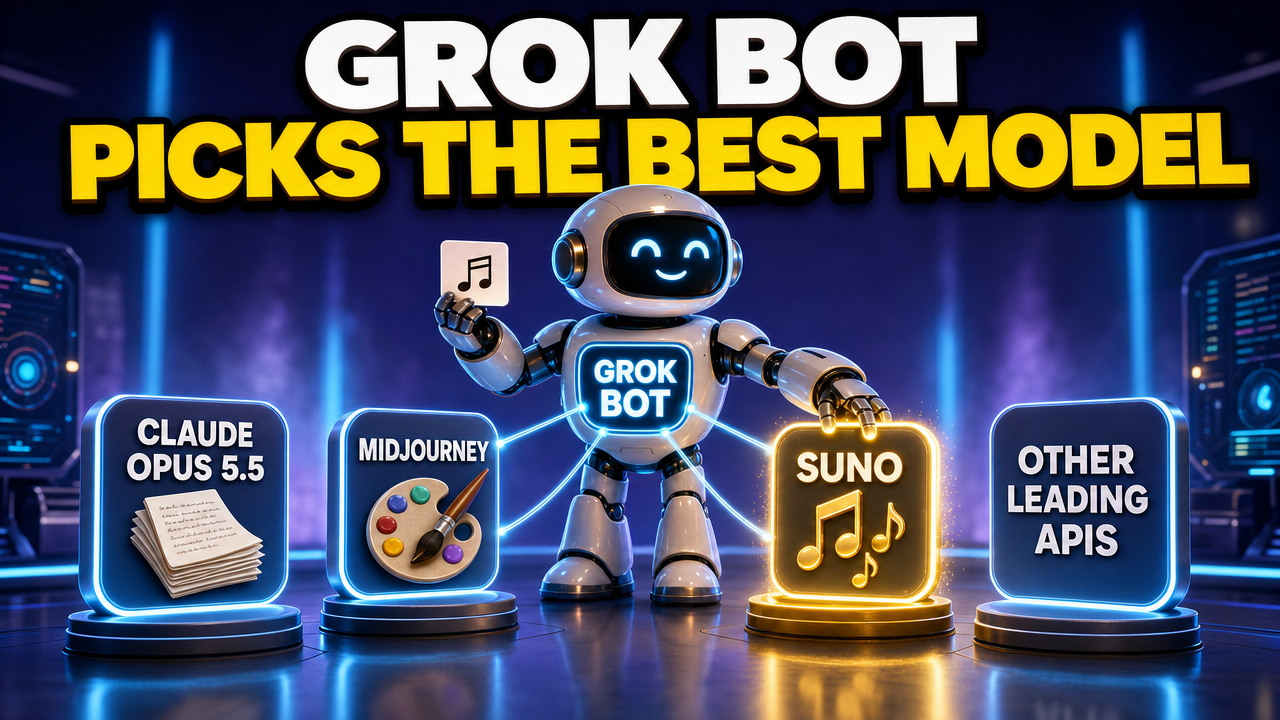
In short: Grok Bot is an AI teammate that does multi-step work for you on its own cloud computer. On 7 October 2026 Musk said it will use the best back-end model for each task, naming Claude Opus 5.5, MidJourney and Suno. It comes with paid Cursor plans from $20 a month or a linked SuperGrok account, and a 10-minute test is below.
robotshelp Launchpad (free): step-by-step lessons to let AI do the boring part of your work.
No password needed – your reset opens instantly.
Why this is good news for your work
- No more tool shopping. You stop asking “which AI is best for this?”. You describe the result you want, and Grok Bot picks the model for each part of the job.
- One place for mixed work. Text, images and music can come out of one request to one Bot, instead of three apps and a lot of copy and paste.
- Better results without effort. When a stronger model appears, the Bot can switch to it. You don’t have to follow every new release to get the benefit.
- Your skill shifts to what matters. Knowing exactly what you want, and checking the result, becomes the valuable part of your job. That is a skill anyone can learn.
What changed: Grok Bot picks the best model per task
On 7 October 2026 Musk posted on X. His post opens with “Important note regarding Grok Bot” and goes on: “Going forward, @SpaceX will use the best back end model for any given task, including Claude Opus 5.5, MidJourney, Suno and other leading APIs. Whatever is most likely to give you the best outcome.” Here is what that means at your desk:
- You don’t pick the model. Grok Bot’s own settings docs already say model selection is managed for you and there is no model picker. The post says the pool behind it gets wider. So the skill that matters is describing the result you want, not knowing which AI is good at what.
- More kinds of work in one request. Musk named a writing and reasoning model (Claude Opus 5.5), an image tool (MidJourney) and a music tool (Suno). If that lands as described, one Bot can write the email, make the picture and add the music, instead of you copying work between three apps.
- The mix can change. The security docs say the serving mix can change over time and no fixed set of providers is guaranteed. Results may get better without you doing anything, and they may also look a little different from one week to the next.
- You can see what was used. The same docs say usage analytics show the model that served each request, and billing follows that model.
This is a developing story. Musk’s post gives no date and no list of which task goes to which model, and when we checked on 7 October the official Grok Bot docs didn’t either.
One request, the right model for each part
This is the heart of the news. You give Grok Bot one job, and it can send each part to the model that is strongest at it. Musk named three examples. Here is how that maps onto everyday work:
| Part of the job | Example request | Where it could go |
|---|---|---|
| Writing and reasoning | “Draft the client email and summarise these three contracts.” | A strong writing and reasoning model, such as Claude Opus 5.5 |
| Images | “Make a clean flyer image with our headline.” | An image generator, such as MidJourney |
| Music and audio | “Add a calm 15-second music bed for the intro video.” | A music tool, such as Suno |
| Everything else | “Turn this spreadsheet into a chart and a short update.” | “Other leading APIs”, whatever fits the task best |
These pairings are examples based on what each tool is known for. Grok Bot makes the choice itself, and xAI has not published an official list of which task goes to which model yet. The point for you stays the same: describe the finished result, not the tool.
How your team can use it
A Bot works by message: you give it the task, the context and access to the tools it needs, and it comes back with the work. It can stop and ask for your approval before anything goes out, but that depends on the action and your settings, so ask for drafts first. A few ways that plays out:
- Sales: “Here are my notes from yesterday’s five demo calls. Draft a short follow-up email for each one, and make one clean product image I can attach.” You read five drafts instead of writing five emails.
- HR and training: “Turn this onboarding checklist into a friendly welcome page for new starters, plus a calm 15-second music bed for the intro video.” If you also record narration for training slides, see how to use Suno Speech to make a voiceover for your training video.
- Finance: “Read these three supplier contracts and put the payment terms, notice periods and price-increase clauses in one table.” It’s reading-and-reasoning work, and you never have to decide which model is best at it.
- Support: “Rewrite this help article so a first-time customer gets it in one read, and make a simple diagram of the three steps.” Text and picture come back together, ready for you to check.
- Managers: “Turn my notes from this week into a five-bullet team update and one summary image for the Monday slide.” Same request every week, same format.
Before vs now
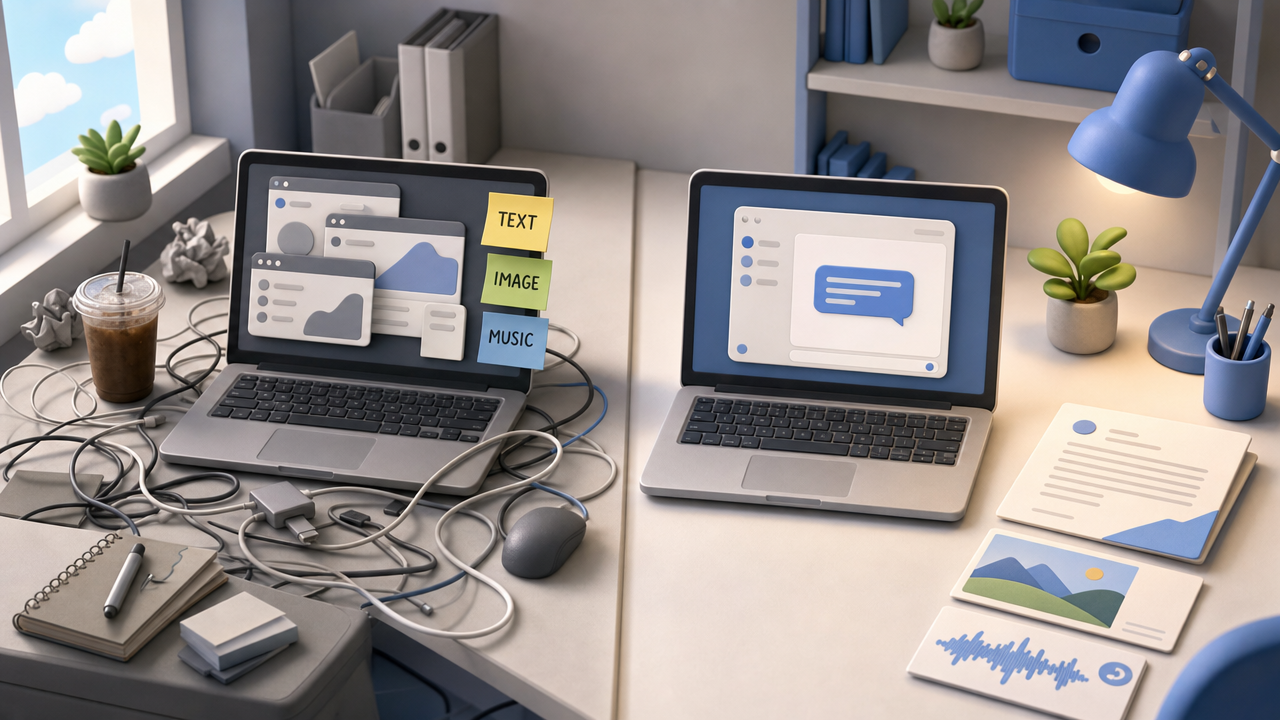
Last month: pick a tool for the text, another for the image, maybe a third for music. Copy the output from one to the next, fix the formatting, and pay for each one separately.
The plan now: one request to one Bot, describing the finished result. Grok Bot chooses the model behind each part. It can stop for your approval before anything goes out, depending on the action and your settings, so ask for drafts first, like the prompt below does. Whether every part already runs on the models Musk named is not confirmed yet, so treat it as a direction, not a promise for today.
Try it yourself (10 minutes)
- Open Grok Bot on your computer or phone and start a chat with a Bot. If you don’t have one yet, create one and give it a plain job title like “Marketing helper”.
- Copy the prompt below, fill in the parts in round brackets, and send it.
- Read every draft. Fix one thing you don’t like by replying in plain words (“shorter, and less salesy”).
- When the format is right, ask the Bot to use this format for the next launch too, so you don’t have to explain it again.
I run (your team) at (your company). Next week we launch (your product or event).
Make me three things:
1. A 120-word announcement email for our customers. Friendly, plain words, one clear next step.
2. A simple flyer image with the headline "(your headline)". No logos, no real people.
3. A 15-second upbeat music idea for a short promo video.
Show everything as drafts. Do not send or post anything.
At the end, tell me which of the three you could not do yet.
That last line matters. Because the new model mix is still rolling out, it tells you straight away what works today and what doesn’t.

Honest limits
- Timing is unclear. Musk said “going forward”. There is no published date, and no official list of which task goes to which model.
- You can’t force a model. There is no model picker. A team model allowlist exists only on the Enterprise plan, and the docs say enforcement is not guaranteed.
- Usage is metered. Paid plans include weekly usage that resets each week. After that, extra work can continue as on-demand usage, billed from model and token cost, if on-demand is turned on. Big image or music jobs may use more of your allowance, so start small.
- Your data goes to other providers. When a task goes to another company’s model, your text goes with it. The docs say that with Privacy Mode on, customer data is not used for training, and that providers don’t keep prompts or outputs under Cursor’s existing agreements. They also say providers may run abuse and safety checks and may store flagged data. If your contract limits which companies can see client data, ask your account team first, and keep sensitive client details out of tests.
- You still check the work. A better model is still a model. Read names, numbers and dates before anything goes to a customer.
Who can use it now
Checked on 7 October 2026 on Cursor’s pricing and plans pages. Prices are per month, before tax.
| Plan | Price | What it means for work |
|---|---|---|
| Cursor Pro | $20 a month | Grok Bot included, with weekly usage below Pro+ |
| Cursor Pro+ | $60 a month | Generous weekly usage; Cursor recommends it for daily agent users |
| Cursor Ultra | $200 a month | The highest weekly usage |
| Cursor Teams | $40 per user a month | Every member gets access, with team billing and team-wide Privacy Mode |
| SuperGrok, SuperGrok Plus, SuperGrok Heavy or X Premium+ | Your existing subscription | Link it to get Grok Bot usage; SuperGrok Lite is not included |
| Cursor Enterprise | Custom | Enterprise access is still rolling out; ask your Cursor account team |
Grok Bot runs on Mac, Windows, Linux, iPhone, iPad and Android.
Quick questions
Can I choose which AI model Grok Bot uses?
No. There is no model picker; model selection is managed for you. Enterprise teams can set a model allowlist, but the docs say Grok Bot may not always follow it.
Does Grok Bot use Claude Opus 5.5 right now?
Musk said on 7 October 2026 that it will, “going forward”. The official docs don’t give a date or a task list yet, so ask your Bot what it can do today.
How much does Grok Bot cost?
It is included with Cursor Pro ($20 a month), Pro+ ($60), Ultra ($200) and Teams ($40 per user), or through a linked SuperGrok or X Premium+ subscription. Each includes weekly usage.
Is my work data used to train the models?
With Privacy Mode on, the docs say customer data is not used for training. Training opt-out follows your Cursor account and privacy settings.
When model routing is sorted and the next bottleneck is clicking through desktop apps and local files, see our guide to the best AI agent for desktop workflows in the office.
For a chat-only desk win after the call, see how to use ChatGPT to summarize meeting notes.
For the empty reply box after the call, how to use ChatGPT to draft reply emails faster.
For a long PDF or report that still needs a short brief and owners, see how to use Claude AI to summarize a long report and extract action items.
Sources
- Elon Musk’s post on X, 7 October 2026
- Grok Bot overview (official docs)
- Grok Bot security: models and data (official docs)
- Grok Bot settings: no model picker (official docs)
- Grok Bot FAQ: cost and data (official docs)
- Grok Bot plans and billing (Cursor help)
- Cursor pricing
- Lookonchain report on the announcement
robotshelp Launchpad (free): step-by-step lessons to let AI do the boring part of your work.
No password needed – your reset opens instantly.