That supplier quote sitting in your drafts. The dentist booking you keep meaning to make. The tool signup that wants a confirmation email. Each one eats a slice of your afternoon, and half the replies land in the wrong folder.
Imagine handing those loops to your assistant with one sentence. With a Grok Bot email, your Bot claims its own inbox, writes out, and the replies come back to it instead of you.
In short: On 9 October 2026, Grok Bot got its own email at @mail.grokbot.com. It can sign up for services, contact businesses for you, or schedule time with someone. You claim it by asking your Bot (or tagging @bot on X). Team plans need an admin to turn it on first. A 10-minute claim and handoff is below.
robotshelp Launchpad (free): step-by-step lessons to let AI do the boring part of your work.
No password needed – your reset opens instantly.
What changed
On 9 October 2026 the official @bot account on X announced that Grok Bot now has its own email. The Bot can use that address to sign up for services, contact businesses for you, or schedule time with someone. The rollout started the same day.
Here is what that means at your desk:
- Sign-ups without your personal inbox. When a tool asks for an email to finish setup, the Bot can use its own address and catch the confirmation itself.
- Supplier and shop emails in the Bot’s thread. Quotes, availability checks, and follow-ups can leave from the Bot’s address, so the reply does not bury your own mail.
- Booking time for you. Asking someone for a slot (a meeting, an appointment) can go out from the Bot, with the back-and-forth staying on that thread.
- One sentence to start. You ask the Bot to claim its email. Addresses end in @mail.grokbot.com, and you can request a custom name if it is free.
When you give your assistant its own email address, you can hand it the repetitive tasks, and you get time back for your family and the things you love.
How your team can use it
- Operations: “Claim your email address, then write to this supplier and ask for a quote on 200 units of SKU-14, delivery to our warehouse next month.” You review the draft or the reply instead of starting from a blank email.
- Sales: “Use your email to book a 20-minute call with this prospect next week. Offer Tuesday or Thursday afternoon.” The calendar dance leaves your inbox alone.
- Support: “Sign up for this returns portal with your email.” The signup mail goes to the Bot’s inbox, not yours.
- HR: “Email this training venue and ask for three available dates for a 12-person workshop.” You pick from the options, not from a pile of unread mail.
- Managers: “Schedule a 30-minute check-in with this contractor for Friday morning.” The Bot handles the back-and-forth until the time is set.
If you also draft everyday replies yourself, see how to use ChatGPT to draft reply emails faster. For picking the right model behind each Grok Bot job, see how to use Grok Bot to get the best AI model for every work task.
Before vs now
- Last month: every signup confirmation, supplier reply, and booking ping landed in your inbox. You chased threads between meetings.
- Now: the Bot has its own @mail.grokbot.com address. You hand it the loop in plain language. Replies come back to the Bot, and you only step in when something needs a human decision.
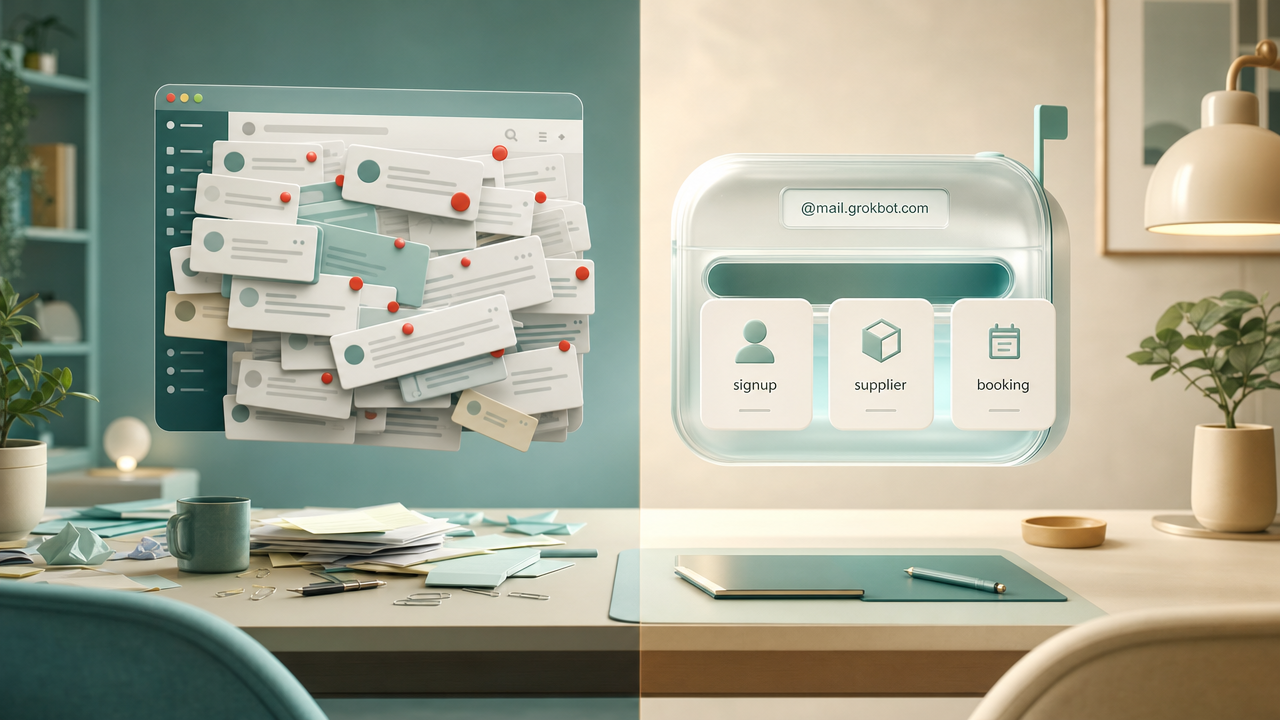
How to claim your Grok Bot email
Ten minutes, start to finish.
- Open your Grok Bot chat.
- Type this exact line:
Claim your email address. - Pick a free name. Short and work-safe works best, like your Bot’s name. The Bot checks whether it is available, and you end up with an address like
yourbot@mail.grokbot.com. - Tap Allow once to approve the claim.
- On a team plan, ask your admin to enable Bot email first if the claim fails.
- Then hand off one real loop:
Using your new email, write a short note to this supplier asking for a quote on [item] by Friday. Show me the draft before you send. - Read the draft. Approve or edit. Let the reply land in the Bot’s inbox, not yours.
Choose the name with care: the name you pick is your Bot’s address from then on.
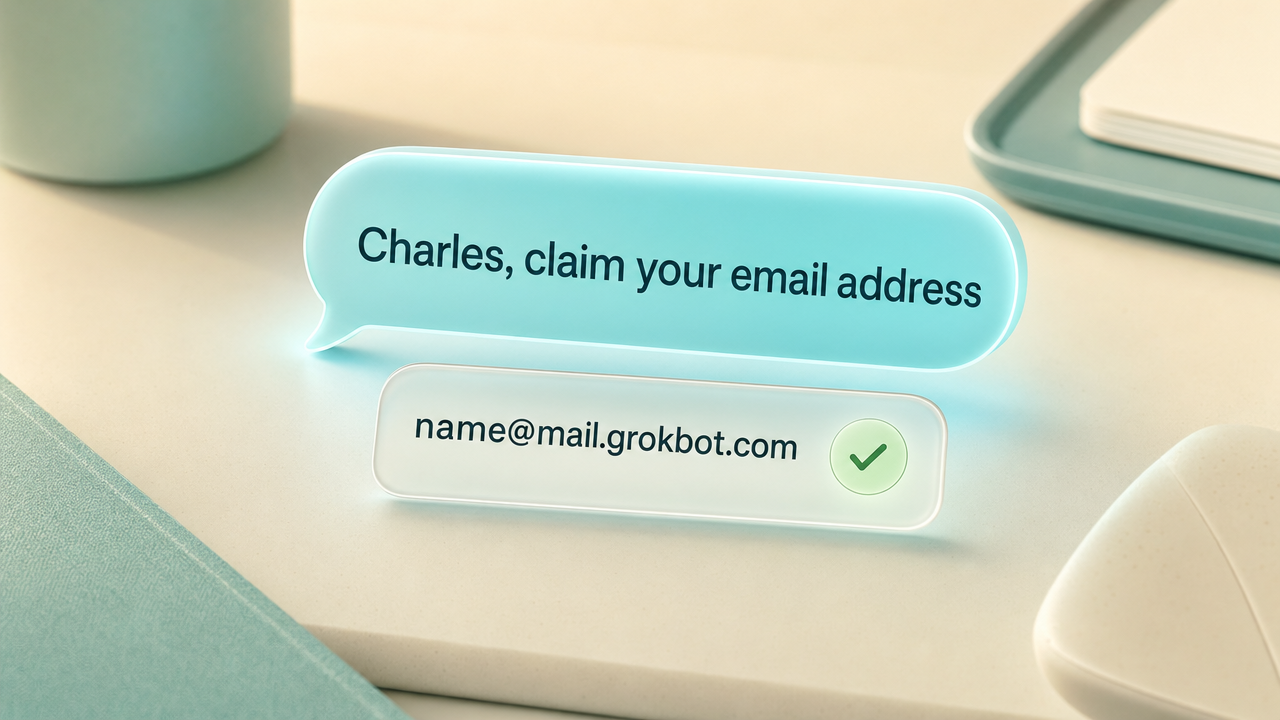
If you cannot open Grok Bot right now, you can also tag @bot on X and ask it to set the inbox up, per the rollout post.
Honest limits
- What it may send in your name. Outgoing mail from the Bot represents you or your team. Start with “show me the draft before you send” until you trust the loop.
- One inbox per Bot is not confirmed. The announcement talks about “its own email” and “your inbox”. SpaceXAI has not said whether every Bot you create gets a separate address, or whether the inbox follows the user. Treat it as one address for your setup until the docs say otherwise.
- Team plans need an admin. If you work inside a company seat, an admin must enable the feature before you can claim.
- No separate price announced. SpaceXAI did not list an add-on fee for Bot email. Grok Bot itself sits on paid Cursor plans from about $20 a month, or a linked SuperGrok account. Confirm the current plan page before you buy.
Who can use it now
Checked on 1 November 2026 against the @bot rollout posts and press walkthroughs:
| Who | What you need | Notes |
|---|---|---|
| Individual Grok Bot users | Ask your Bot, or tag @bot on X | Rolling out from 9 October 2026 |
| Team / company seats | Admin enables Bot email, then you claim | Claim fails until the admin switch is on |
| Address format | @mail.grokbot.com | Custom name if available (per 9to5Mac) |
| Extra fee for email | None announced | Grok Bot is bundled with Cursor / SuperGrok plans |
Quick questions
How do I claim a Grok Bot email address?
In your Grok Bot chat, type “Claim your email address”, pick a free name, and tap Allow once. You can also tag @bot on X. On a team plan, an admin must enable the feature first.
What can Grok Bot do with its email?
The announcement names three jobs: sign up for services, contact businesses for you, and schedule time with someone. Anything beyond that is not documented yet.
Does every Bot get its own inbox?
SpaceXAI has not said. Until the docs cover it, treat the inbox as one address for your user setup, not a guaranteed address per Bot name.
Is Grok Bot email free?
No separate email fee was announced. You still need a Grok Bot seat on a paid Cursor or SuperGrok plan. Check the current plan page for the exact price.
Sources
- @bot announcement: Grok Bot now has its own email (9 October 2026)
- @bot rollout: claim by asking Bot or tagging @bot; admins must enable for teams (9 October 2026)
- 9to5Mac: how to claim, @mail.grokbot.com, custom name (9 October 2026)
- CellCog walkthrough and open questions (docs gaps, unit of the inbox) (10 October 2026)
For a wider look at desktop AI agents in the office, see best AI agent for desktop workflows in the office. And when the same chase note keeps landing back on your desk, automate follow-up emails without code so the sequence keeps moving without a developer.
robotshelp Launchpad (free): step-by-step lessons to let AI do the boring part of your work.
No password needed – your reset opens instantly.